
SplitAss app icon

A little help. For every table.

SplitAss

Your assistant for splitting the bill.

Ass is short for Assistant.

Find your answer ↓
Made for iPhone, iPad and Mac.

Split, check and settle with SplitAss.

01 / Split the bill

Every detail.
Already there.

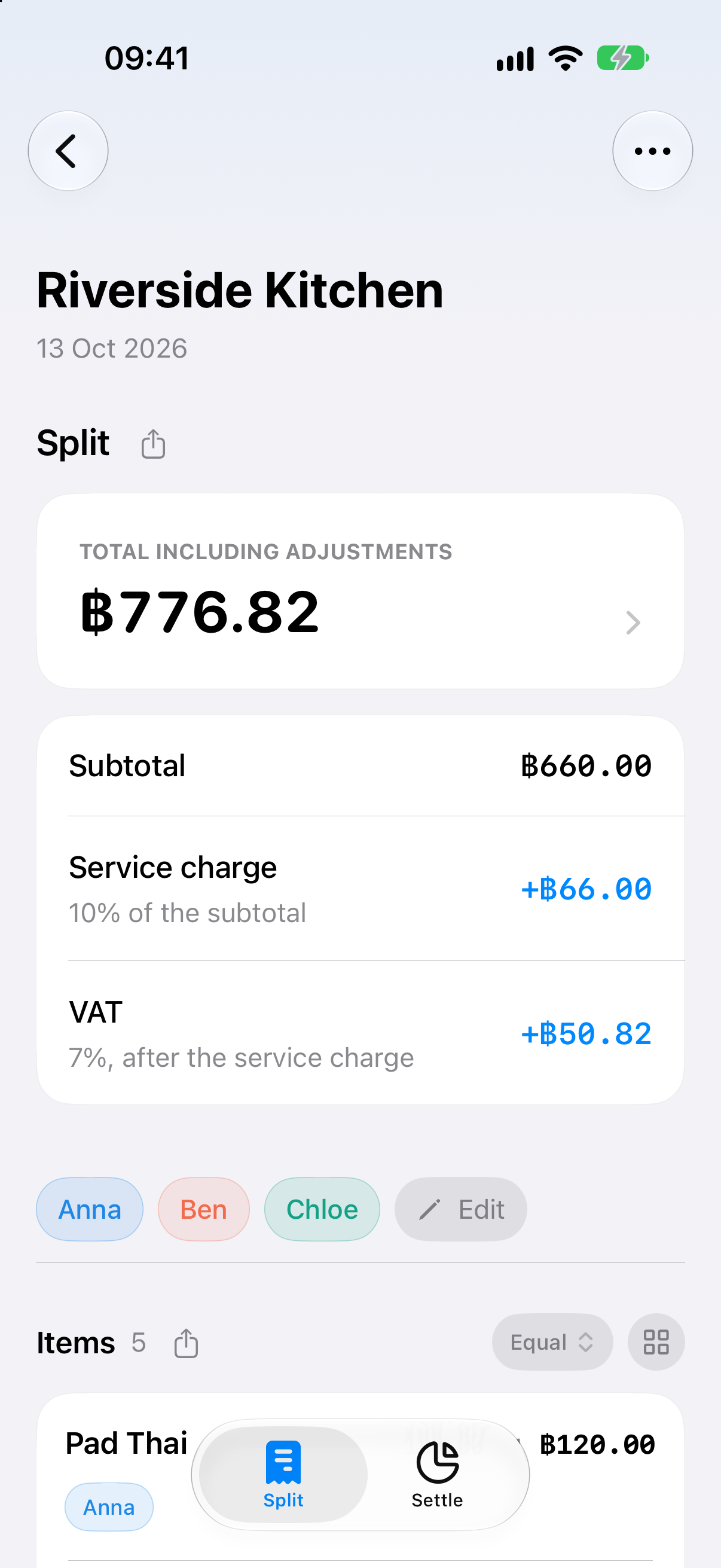
Items, service charge and VAT.
One clear view of the whole bill.

02 / Check every share

Every person.
A fair share.

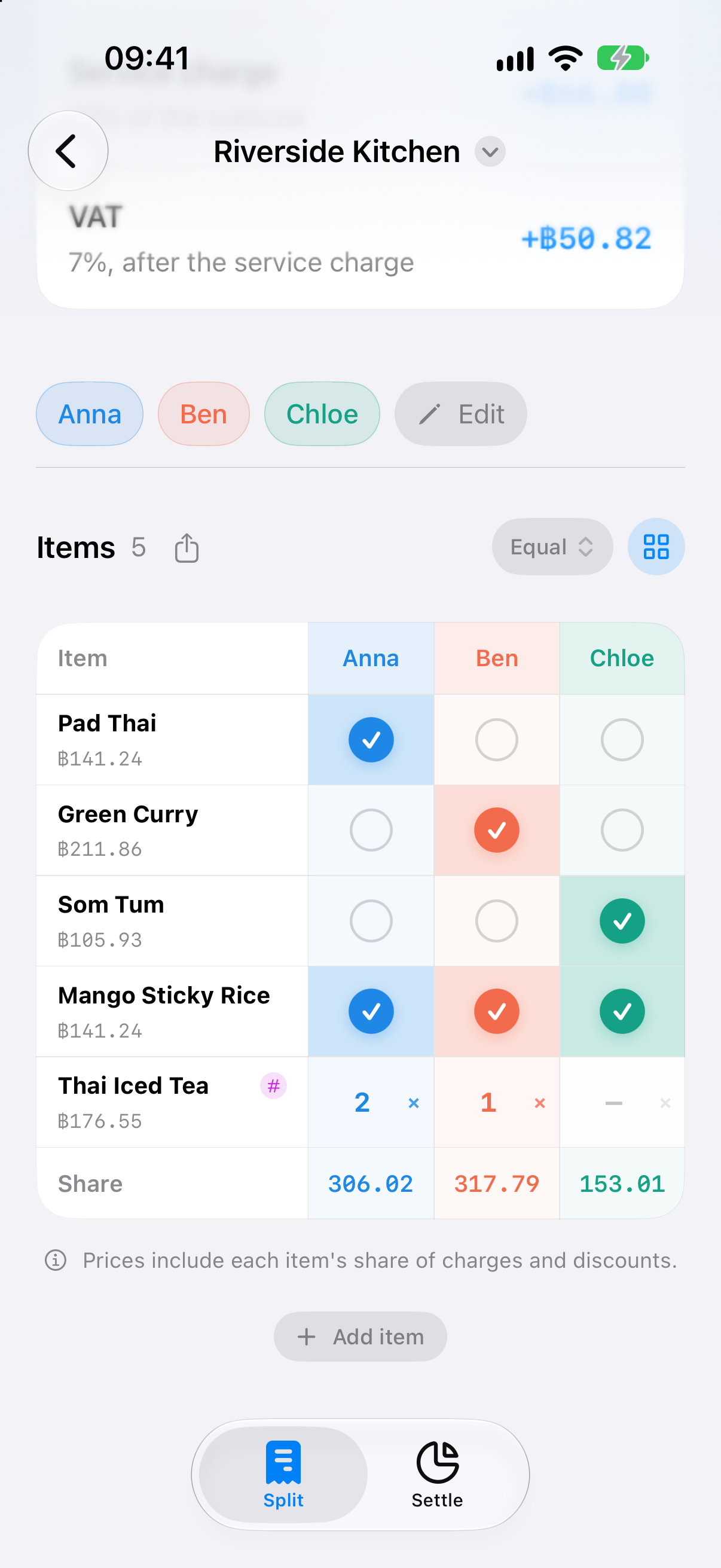
See the whole table in the grid.
Tick who shared what. Check each total.

03 / Settle up

Every payment.
Made clear.

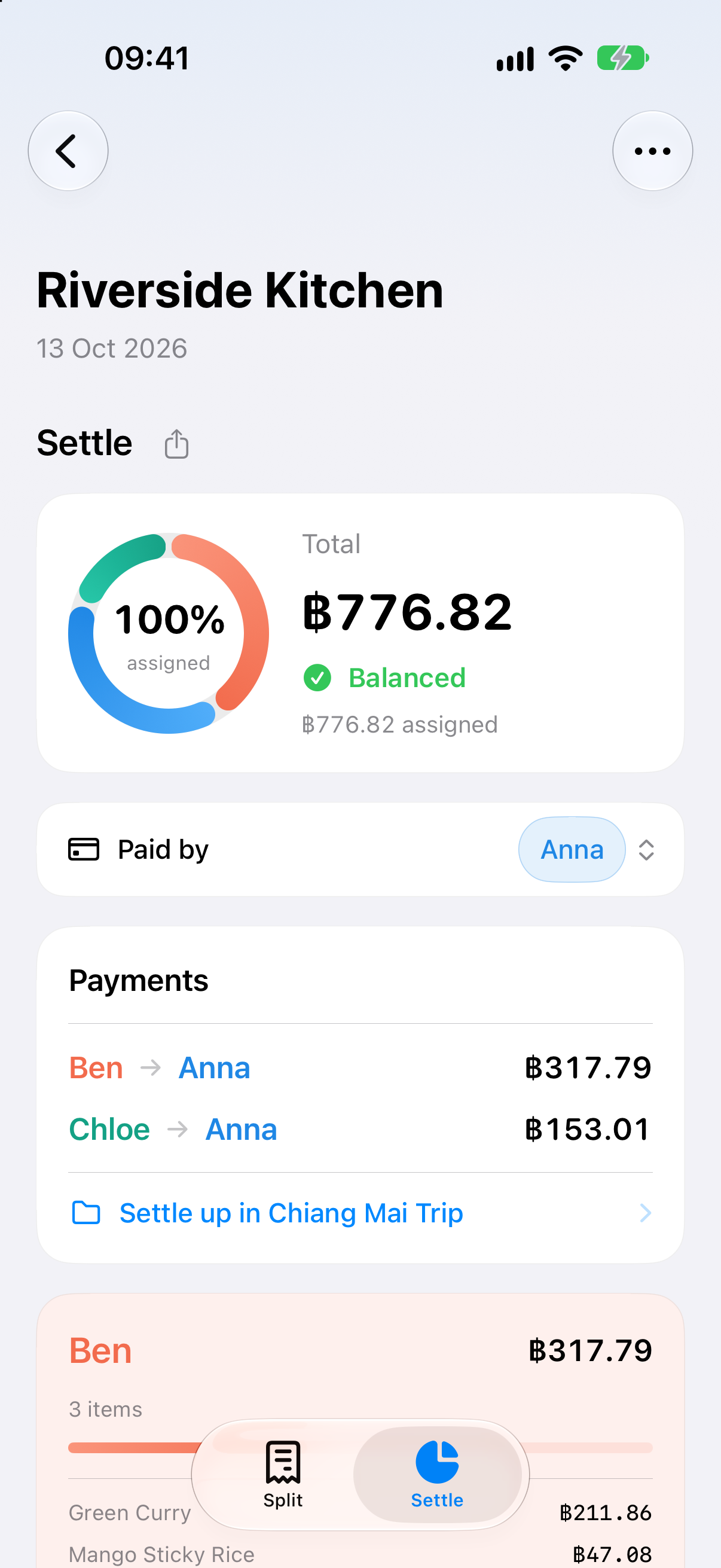
Choose who paid.
See who pays them back, and how much.

SplitAss Split screen with total, service charge, VAT and people
01 Split the bill.
SplitAss assignment grid showing Anna, Ben and Chloe’s item shares
02 Check every share.
SplitAss Settle screen showing the balance ring, who paid and payments
03 See who pays who.

Features

A little help.
All the way to settled.

From the first scan to the last share. Take a closer look.

Riverside KitchenTable 6 · Bangkok
Pad Thai฿120.00
Green Curry฿180.00
Som Tum฿90.00
Mango Sticky Rice฿120.00
Thai Iced Tea × 3฿150.00
Service charge 10%฿66.00
VAT 7%฿50.82
Total฿776.82

A receipt. A head start.

Scan a photo, review the details, then split. Choose Cloud, free on-device reading on supported devices, or enter items yourself.

Mango Sticky Rice

Quantity 1 · ฿120.00

EqualPercentAmountQty

Split equally between 3

One item. Any combination.

Choose who shared what. Split equally, by percent, by amount or by quantity—even differently for each item. Charges and discounts follow each share.

A group of receipts

Bangkok weekend

3 receipts฿1,800.00
Anna paid ฿1,500Ben paid ฿300
Settle up2 transfers
BenAnna฿300.00
ChloeAnna฿600.00

Everyone’s share: ฿600.00

More memories. Fewer transfers.

Keep a trip’s receipts in a group. SplitAss brings the balances together and works out who pays whom across the whole trip.

The numbers, beautifully explained.

Share the bill, a person’s items or the whole summary as an image. Choose Light, Dark or Analog for a picture that feels like a printed receipt.

Yours, from the start.

Your bill.
Your business.

Your receipts stay on your device.
No account. No receipt syncing.
Just one less thing to think about.

Explore your privacy ↗

A good place to start.

Little questions.
Clear answers.

How do I scan a receipt?

Tap New Receipt, then Scan. Take or choose a photo, crop it to the receipt, and tap Scan. In Settings › AI Model, choose Cloud or on-device reading with Apple Intelligence on supported devices.

How do credits work?

Cloud text scans use 1 credit; image scans use 2. Each new device starts with 20 free credits. Add 50, 150 or 450 in Settings › Credits. On-device scanning and entering items yourself are free.

How do I split and settle?

Add people, then tap an item to assign who shared it. Use the grid to see everyone at once. On Settle, choose who paid to see who pays them back. Group a trip’s receipts to settle them together.

Where are my receipts stored?

Your receipts stay on your device. There’s no account and no receipt syncing. Credit balances and purchases are kept on the server under a random ID.

Can I watch the welcome tour again?

Yes. Open Settings › Take the Tour whenever you want a refresher.

Always happy to help.

Let’s work it out.

Questions, a tricky receipt, or an idea?
There’s a person on the other end.

Get in touch ↗